Fill PDF
Fill out PDF forms on Android
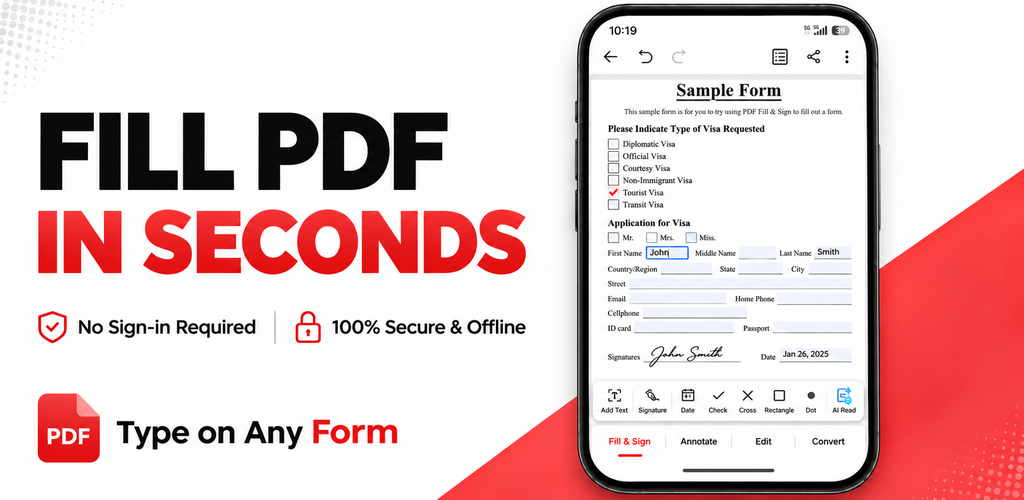
Open a form on your phone, type names and dates where they belong, review the pages, and choose an available save option. PDF Fill & Sign brings these steps together on Android.
A simple workflow
From blank form to finished copy
Useful for applications, agreements, and other paperwork that needs typed details. Keep an untouched copy of important forms before editing.
1. Open the PDF
Choose the document from your phone, recent files, or a supported share action. Check that all pages loaded.
2. Add and check details
Use Add Text for names, addresses, and dates. Place each answer inside its intended field, then review every page.
3. Save the finished copy
Tap Save and choose from the options shown in the app. Open the saved file once more before sharing it.
FAQ
Can I type on a PDF that has no fillable fields?
Use Add Text to place typed answers over the page. Check the position and readability before saving.
Can I sign after filling a form?
Yes. Add the details first, place a handwritten signature where requested, then review the finished page.
Is every save option free?
The app shows the save options available to you. Some premium features may require an in-app purchase.