Android PDF guide
How to fill out a PDF on Android
Complete a PDF form from your phone by adding text, dates, and a signature, then choose the save option that works for you.
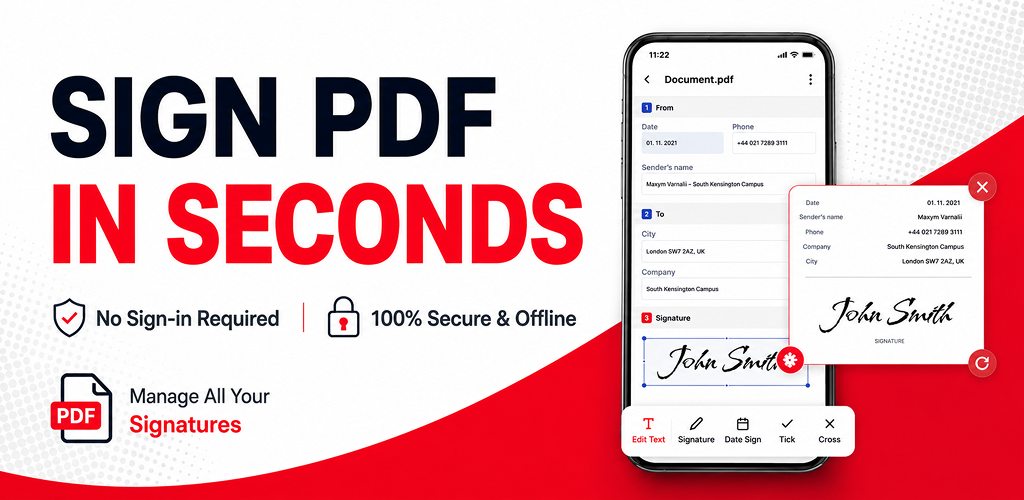
Fill a PDF without printing it
When a form arrives as a PDF, you do not need to move to a desktop or print the document just to enter a name, date, address, or short answer. PDF Fill & Sign brings the common form tools together in one Android workspace.
Before editing, keep an untouched copy of important paperwork. This makes it easy to start again if the document has strict formatting requirements.
How to fill out your PDF
-
Open the PDF
Open PDF Fill & Sign and choose the document from your phone, recent files, or a supported share action. Check that every page is visible before you begin.
-
Select the form tool
Open the form and signing tools, then select Add Text for names, addresses, dates, or other typed answers.
-
Add and position your text
Tap the place where the answer belongs, enter the text, and adjust its position so it stays inside the intended field or line.
-
Add dates, marks, or a signature
Use the appropriate tool when the form needs a date, tick, cross, or handwritten signature. Review the document's instructions before signing.
-
Review every page
Zoom in and confirm that each answer is readable, correctly placed, and not covering the original form text.
-
Save or share the completed PDF
Tap Save when the document is ready. The app will show the save options currently available to you. Choose one, create the finished copy, and share it with the recipient.
Tips for a clean, readable form
- Use short answers that fit the original field.
- Keep text size consistent across similar fields.
- Place signatures only where the document requests them.
- Check names, dates, and contact details before saving.
- Follow the recipient's rules for official or legal documents.
Common questions
Can I fill out a PDF on an Android phone?
Yes. PDF Fill & Sign lets you open a PDF on Android, add text and other details, and continue to the available save options.
Can I add a signature after filling the form?
Yes. Enter the other details first, then create or place a handwritten signature where the form requires it.
Is PDF Fill & Sign free?
PDF Fill & Sign is free to install and start using. The app displays the save options currently available to you, and optional premium features are available through in-app purchases.
Can I edit the original text already inside a PDF?
The form tools are designed to add text, marks, dates, and signatures. Editing the document's original embedded text depends on the PDF and available editing tools.